Redesign your
real space
Start from a photo of any room, patio, garden, or facade. Get AI ideas, try curated styles, or pin exact changes to specific spots. Compare versions, iterate, and stay in creative flow.
 Free on iOS
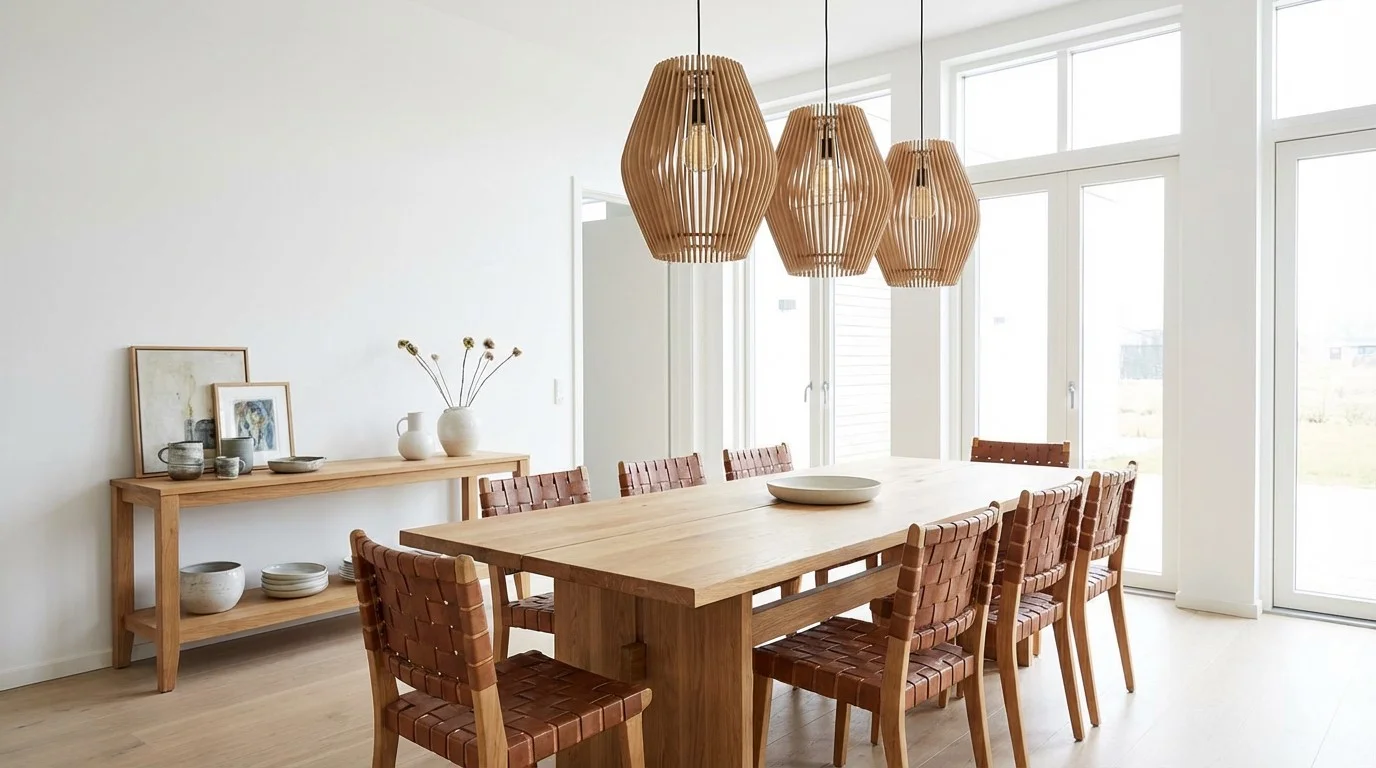
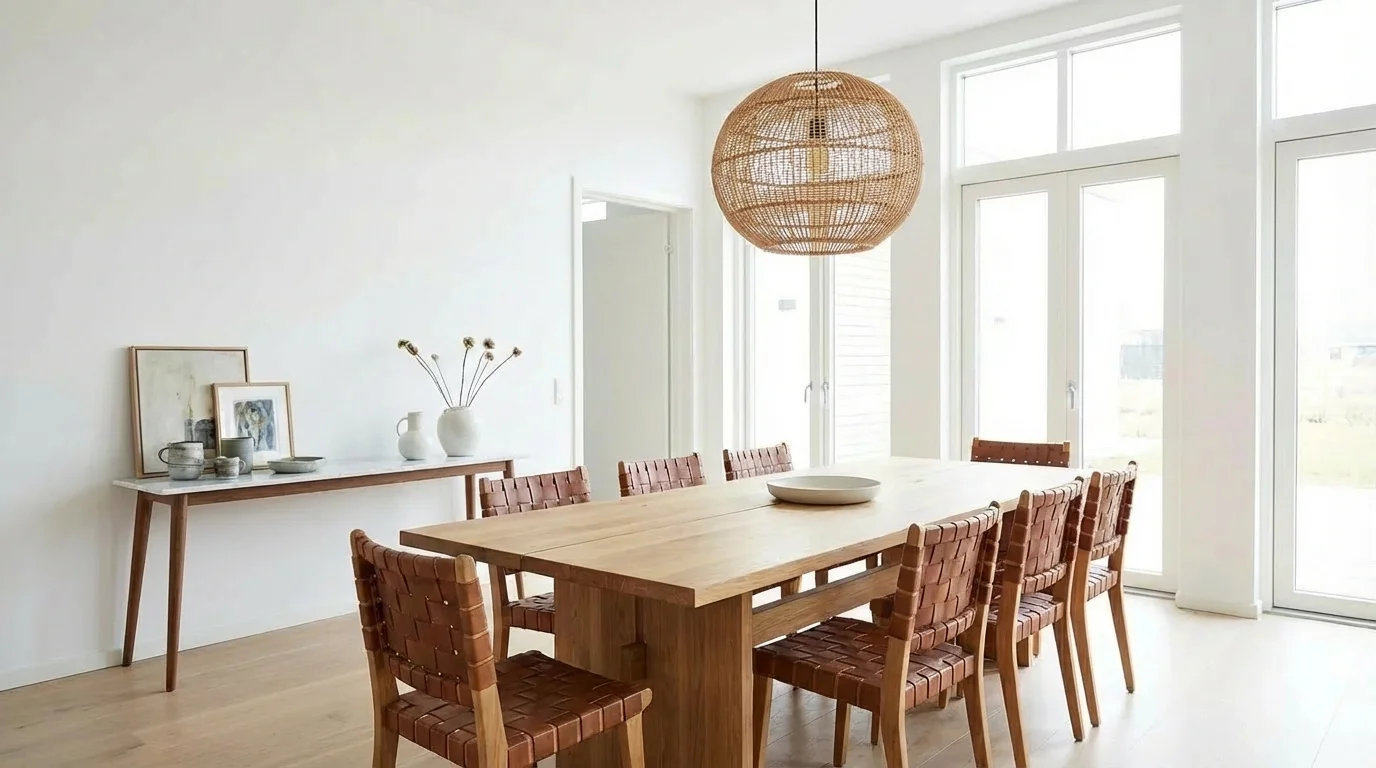
Replace @1 with a rattan pendant light, swap @2 for a marble console table — warm Scandinavian throughout.
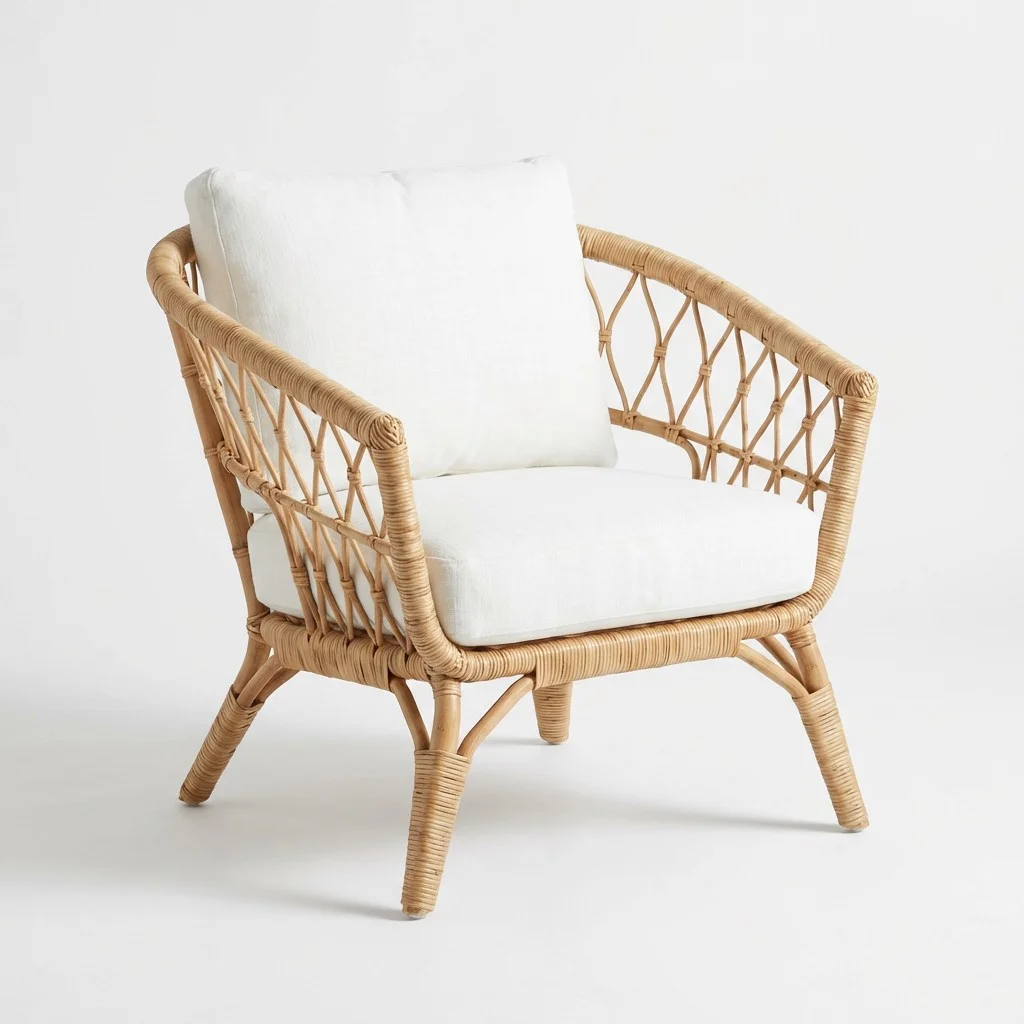 @1
@1
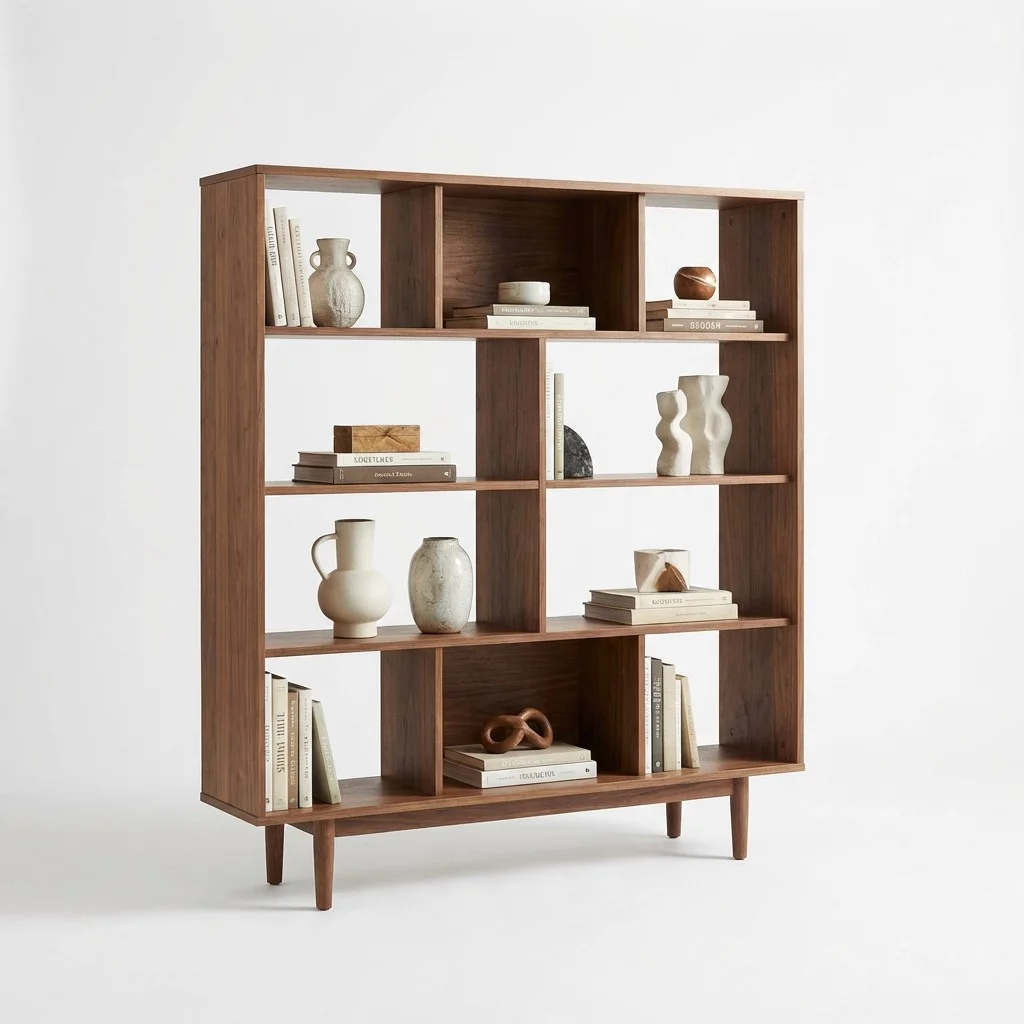 @2
@2
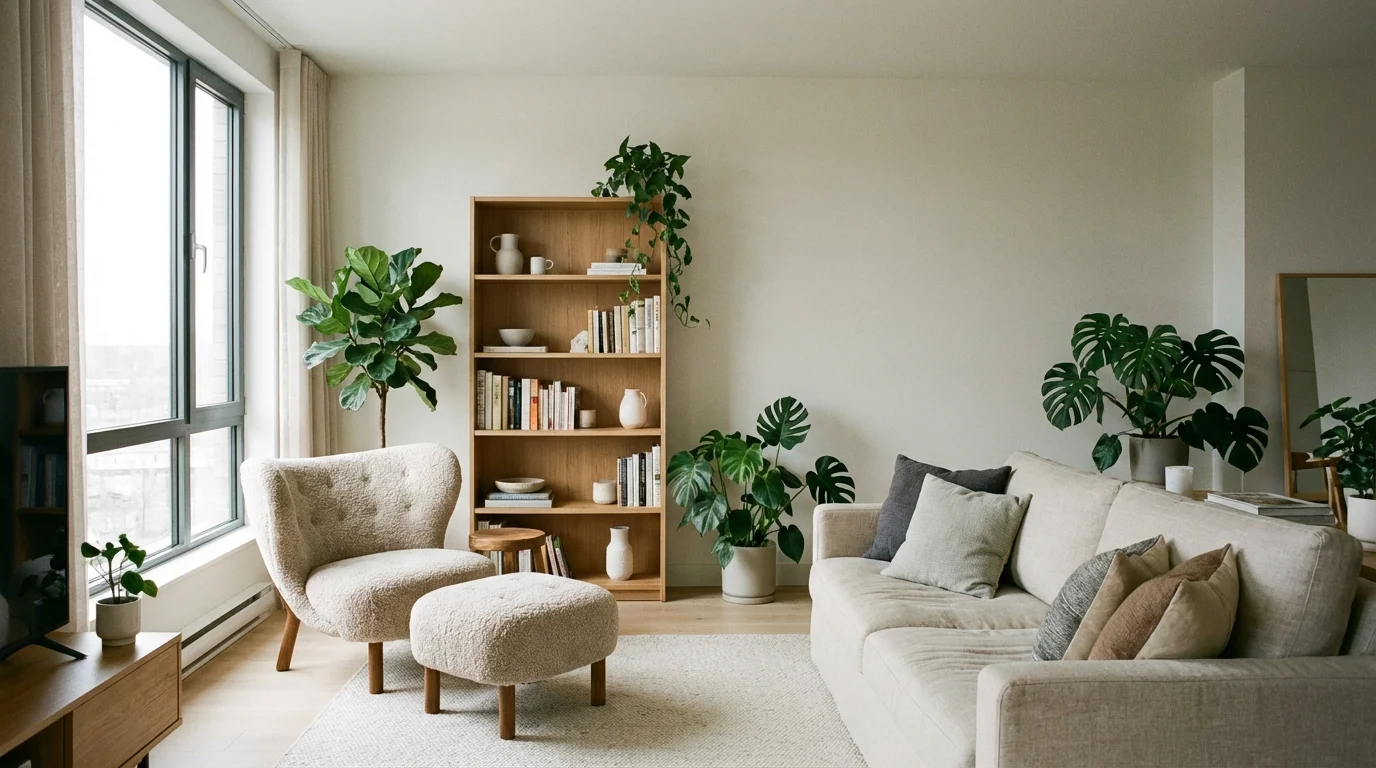
Replace @1 with this armchair including the ottoman, swap @2 color to this shelf's color — keep the rest as-is.
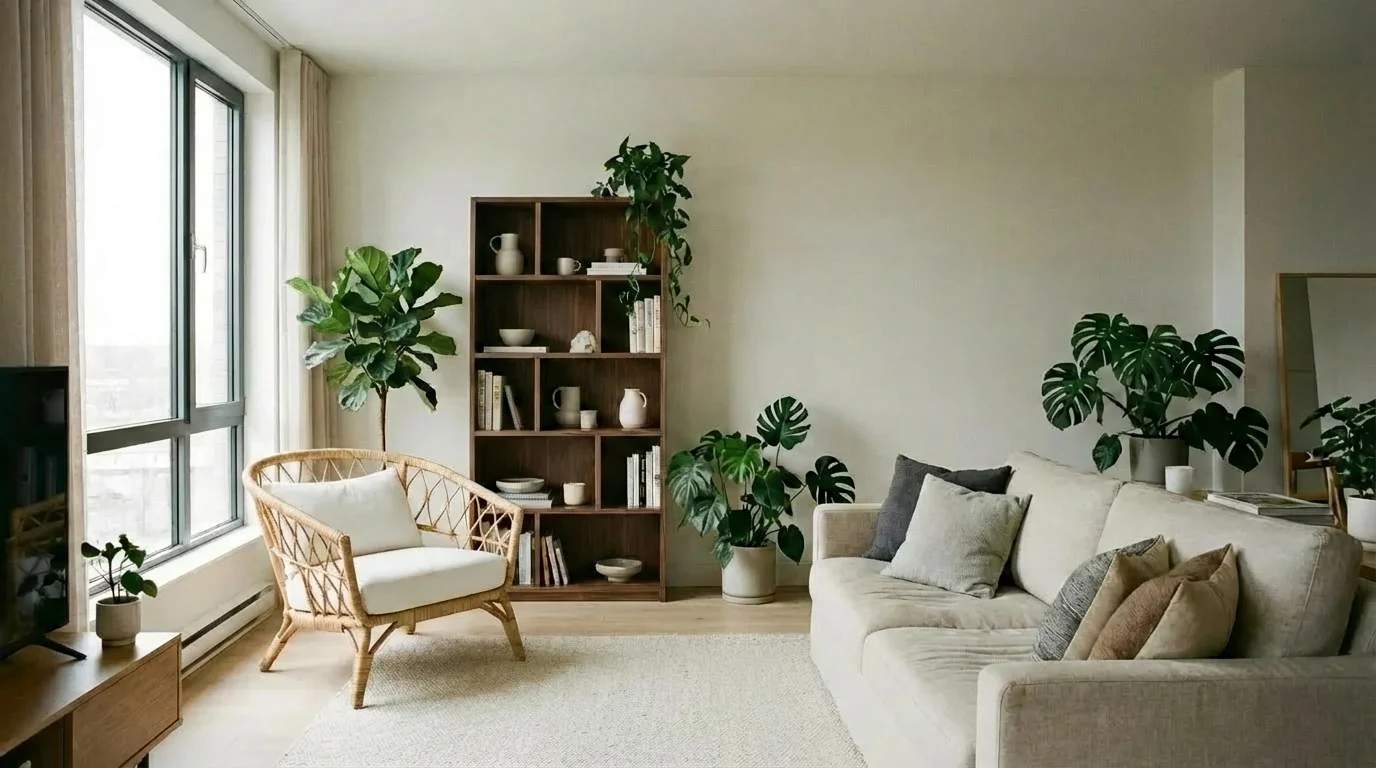
From idea to iteration
in one place
Many AI design tools give one prompt box and one result. Decorate gives you a full creative loop — ideas, styles, compare, spot edits, and iteration without leaving the workspace.
One prompt, one result, start over
Most AI design tools give you a blank prompt box and a single output. No help finding a direction, no way to compare, no way to refine one area without regenerating everything.
A full creative loop in one screen
Get AI ideas when you are unsure, try curated styles instantly, compare versions side by side, and pin exact changes with Spot Edit. Every result builds on the last — no restarting from scratch.
Redesign any space
in seconds
Rooms, kitchens, patios, gardens, facades — any space you can photograph
Start from your real space
Snap your room, patio, garden, or facade. Decorate works on your actual photo — not a blank canvas or stock image.
Choose your path
Write a freeform prompt, browse AI-generated ideas, apply a curated style preset, or pin Spot Edits to exact locations.
Compare and iterate
Compare before and after, scroll through versions, retry or branch from any result. Each version builds on the last.
Replace specific furniture
with AI
Pin changes to exact spots — swap a sofa, change a light fixture, or replace countertops without touching anything else.
Tap to place spots
Pin up to 4 spots on your image. Each spot targets a precise area for the AI to transform while keeping everything else intact.
Describe each change
Write detailed instructions per spot. "Replace with a mid-century walnut sideboard" is all the AI needs — no reference photo required.
Attach reference images
Have a specific piece in mind? Attach a reference photo to any spot for visual precision. The AI matches your vision.
Combine with global restyle
Spot-level swaps plus a global prompt in one generation. Replace the sofa and redecorate the whole space Scandinavian — simultaneously.
A full design workspace,
not just a prompt box
Ideas, styles, compare, version history, and precision editing — one continuous creative surface.
Ideas
Not sure what direction to take? AI-generated ideas help you find a starting point from your own space. Select one and generate instantly.
Style Presets
Browse a curated library of design styles with thumbnails. Apply a full-room direction instantly without writing a detailed prompt.
Spot Edit
Pin exact areas, attach reference images, and write targeted instructions. Change what you want while keeping the rest intact.
Compare
Compare results against the previous version or older baselines. Compare stays inside the same workspace — no separate mode.
Version Navigation
Browse versions with vertical swiping. Jump to original or any version from the tag menu. Retry or branch from any result.
One-Screen Studio
Generate, compare, iterate, and browse history without ever leaving the workspace. No context switching.
Project History
Projects persist locally and can be reopened later. History is a first-class part of the experience.
Share and Export
Share or copy results directly. Free exports are watermarked, Pro exports are clean.
Dark Mode
Full light and dark theme support. Match your system preference or choose manually.
Common questions
One photo away from
your next redesign
Start with your real space. Get AI ideas, try curated styles, or pin exact changes with Spot Edit. Compare versions, iterate without restarting, and move from idea to direction in one creative flow.